
• A Salesforce Object is a user-defined data structure that empowers you to store confidential business data. Some commonly used Salesforce Objects include Accounts, Contacts, Leads, Opportunities, and Cases.

    Cloning Salesforce Objects becomes essential for admins when they need to quickly duplicate a record, along with its crucial data, such as a prior opportunity with its associated products and stages. Additionally, it can be helpful when you want to replicate the metadata (structure) of a custom object, including fields, validation rules, record types, and field sets, to create an identical object without having to design it from scratch.


    Let’s discuss the two approaches for cloning Salesforce Objects across your orgs.

    Clone Salesforce Objects using the Manual Method
    The manual approach to Clone Salesforce Objects involves recreating relevant objects and their components in the new org. This process requires you to create everything from scratch in the target org. However, this approach is both complex and time-consuming for Salesforce admins. The situation worsens when you need to migrate multiple custom objects with distinct fields, validation rules, record types, and field sets.

    Here are the steps you need to follow to clone Salesforce objects using the manual approach:

    Identify the Object to Clone
    Document Object Fields and Properties
    Export Object Metadata (Optional via ANT/CLI)
    Recreate Object in Target Org
    Add Fields Manually in Target Org
    Configure Record Types
    Recreate Validation Rules
    Recreate Field Sets
    Recreate Page Layouts
    Recreate Relationships (Lookup/Master-Detail)
    Rebuild Permissions (Profiles & Permission Sets)
    Recreate Workflows, Triggers, and Automation
    Recreate Reports & Dashboards Linked to the Object
    Test the Object in Target Org
    Deploy to Production
    How would you tackle the hurdle and ensure that all object components get transferred seamlessly into your target org without starting from scratch?

    Clone Salesforce Objects using migSO
    migSO is a native Salesforce app that empowers you to clone, export, manage, and compare metadata items with ease. It is a powerful tool that enables admins to bulk-clone standard and custom objects from one org to another, all within a few clicks. Furthermore, it also lets you adjust the permissions for different profiles. Here are the simple steps you need to follow to clone Salesforce objects using migSO:

    Step 1. Open migSO via App Launcher
    Step 2. Select Clone Wizard
    Step 3. Select Metadata Item
    Step 4. Select Source Org
    Step 5. Choose Objects & Deploy
    Step 6. Review Deployment Status
    Step 7. Set Fields Permission
    Step 8. Download Report
    Conclusion
    Cloning Salesforce Objects manually can become hectic for admins, especially when dealing with orgs that contain multiple objects and their related components. migSO simplifies this process by offering a streamlined approach to cloning Salesforce objects in mere seconds. This #1 Salesforce Metadata Management App empowers you to clone both standard and custom objects across your orgs.

    Who are We?
    Tech9logy Creators is a Registered Salesforce Consulting and ISV Partner Company with over 11 years of experience. We have a certified team of developers with extensive knowledge of the Salesforce AppExchange, providing you with best-in-class, personalized apps. Our dedicated Salesforce experts help you bring the best out of your CRM and ensure your business operates at its highest potential.

    Read More: https://migso.io/our-blog/features-benefits/clone-salesforce-objects-manual-vs-migso-way/
    A Salesforce Object is a user-defined data structure that empowers you to store confidential business data. Some commonly used Salesforce Objects include Accounts, Contacts, Leads, Opportunities, and Cases. Cloning Salesforce Objects becomes essential for admins when they need to quickly duplicate a record, along with its crucial data, such as a prior opportunity with its associated products and stages. Additionally, it can be helpful when you want to replicate the metadata (structure) of a custom object, including fields, validation rules, record types, and field sets, to create an identical object without having to design it from scratch. Let’s discuss the two approaches for cloning Salesforce Objects across your orgs. Clone Salesforce Objects using the Manual Method The manual approach to Clone Salesforce Objects involves recreating relevant objects and their components in the new org. This process requires you to create everything from scratch in the target org. However, this approach is both complex and time-consuming for Salesforce admins. The situation worsens when you need to migrate multiple custom objects with distinct fields, validation rules, record types, and field sets. Here are the steps you need to follow to clone Salesforce objects using the manual approach: Identify the Object to Clone Document Object Fields and Properties Export Object Metadata (Optional via ANT/CLI) Recreate Object in Target Org Add Fields Manually in Target Org Configure Record Types Recreate Validation Rules Recreate Field Sets Recreate Page Layouts Recreate Relationships (Lookup/Master-Detail) Rebuild Permissions (Profiles & Permission Sets) Recreate Workflows, Triggers, and Automation Recreate Reports & Dashboards Linked to the Object Test the Object in Target Org Deploy to Production How would you tackle the hurdle and ensure that all object components get transferred seamlessly into your target org without starting from scratch? Clone Salesforce Objects using migSO migSO is a native Salesforce app that empowers you to clone, export, manage, and compare metadata items with ease. It is a powerful tool that enables admins to bulk-clone standard and custom objects from one org to another, all within a few clicks. Furthermore, it also lets you adjust the permissions for different profiles. Here are the simple steps you need to follow to clone Salesforce objects using migSO: Step 1. Open migSO via App Launcher Step 2. Select Clone Wizard Step 3. Select Metadata Item Step 4. Select Source Org Step 5. Choose Objects & Deploy Step 6. Review Deployment Status Step 7. Set Fields Permission Step 8. Download Report Conclusion Cloning Salesforce Objects manually can become hectic for admins, especially when dealing with orgs that contain multiple objects and their related components. migSO simplifies this process by offering a streamlined approach to cloning Salesforce objects in mere seconds. This #1 Salesforce Metadata Management App empowers you to clone both standard and custom objects across your orgs. Who are We? Tech9logy Creators is a Registered Salesforce Consulting and ISV Partner Company with over 11 years of experience. We have a certified team of developers with extensive knowledge of the Salesforce AppExchange, providing you with best-in-class, personalized apps. Our dedicated Salesforce experts help you bring the best out of your CRM and ensure your business operates at its highest potential. Read More: https://migso.io/our-blog/features-benefits/clone-salesforce-objects-manual-vs-migso-way/
    MIGSO.IO
    Clone Salesforce Objects: Manual Approach Vs the migSO Way!
    Discover how manual clone objects in salesforce can be time-consuming — and how the migSO streamlines Clone Salesforce Objects across orgs in just a few clicks.
    0 Commenti 0 condivisioni 2338 Views 0 Anteprima
  • Clone Salesforce Flows: Manual vs. the migSO Approach
    Admins often need to clone Salesforce flows in the same org or from other Salesforce orgs (connected or unconnected orgs). Recreating Salesforce flows across orgs helps admins streamline processes, reduce repetitive work, and improve the user experience.

    However, building flows from scratch with the same logic from scratch usually consumes a lot of time. That’s not all; it also means repeating configurations, checking dependencies, testing logic, and ensuring nothing is missed. Before discussing how migSO helps you ensure smoother Salesforce flow cloning, let’s first understand the issues with the manual process.

    Common Challenges With Manual Flow Recreation in Salesforce
    1. Repetitive Configuration
    Recreating an existing Flow signifies repetitive work that has already been completed in one org. For teams managing multiple orgs, this can turn into a time-consuming process.

    2. Higher Risk of Errors
    Complex Flows contain multiple components and logic paths. When you recreate configurations manually, you may overlook a condition, variable, action, or other setting.

    3. Chances of Inconsistency
    A Flow might work perfectly in one org but behave completely differently if its configuration isn’t replicated consistently in another. Keeping the same logic across multiple orgs therefore requires careful attention and thus more admin time.

    4. Difficult to Scale
    Migrating a single Flow may not be a problem. But imagine doing the same work for dozens of Flows across multiple Salesforce orgs. That’s where manual replication becomes increasingly difficult to manage.

    Streamline Bulk Clone Flows in Salesforce with migSO
    Tired of manually recreating Salesforce flows across your orgs? Switch to migSO to relish a smoother process to bulk clone Salesforce flows within seconds. Instead of manually recreating a Salesforce Flow in another org, migSO enables Salesforce teams to clone Flows between connected or unconnected Salesforce orgs. migSO eliminates the need to rebuild the configuration from scratch and reduces manual errors that can occur during manual recreation.

    Browse our blog to learn the detailed steps about Salesforce Flow Cloning using migSO.

    Who Are We?
    Tech9logy Creators is a Registered Salesforce Consulting and ISV Partner Company with over 12 years of experience. We have a certified team of developers with extensive knowledge of Salesforce AppExchange and provide you with the best-in-class personalized apps. Our dedicated Salesforce experts help you bring the best out of your CRM and ensure your business operates at its highest potential.

    Contact us to explore the migSO world!

    Clone Salesforce Flows: Manual vs. the migSO Approach Admins often need to clone Salesforce flows in the same org or from other Salesforce orgs (connected or unconnected orgs). Recreating Salesforce flows across orgs helps admins streamline processes, reduce repetitive work, and improve the user experience. However, building flows from scratch with the same logic from scratch usually consumes a lot of time. That’s not all; it also means repeating configurations, checking dependencies, testing logic, and ensuring nothing is missed. Before discussing how migSO helps you ensure smoother Salesforce flow cloning, let’s first understand the issues with the manual process. Common Challenges With Manual Flow Recreation in Salesforce 1. Repetitive Configuration Recreating an existing Flow signifies repetitive work that has already been completed in one org. For teams managing multiple orgs, this can turn into a time-consuming process. 2. Higher Risk of Errors Complex Flows contain multiple components and logic paths. When you recreate configurations manually, you may overlook a condition, variable, action, or other setting. 3. Chances of Inconsistency A Flow might work perfectly in one org but behave completely differently if its configuration isn’t replicated consistently in another. Keeping the same logic across multiple orgs therefore requires careful attention and thus more admin time. 4. Difficult to Scale Migrating a single Flow may not be a problem. But imagine doing the same work for dozens of Flows across multiple Salesforce orgs. That’s where manual replication becomes increasingly difficult to manage. Streamline Bulk Clone Flows in Salesforce with migSO Tired of manually recreating Salesforce flows across your orgs? Switch to migSO to relish a smoother process to bulk clone Salesforce flows within seconds. Instead of manually recreating a Salesforce Flow in another org, migSO enables Salesforce teams to clone Flows between connected or unconnected Salesforce orgs. migSO eliminates the need to rebuild the configuration from scratch and reduces manual errors that can occur during manual recreation. Browse our blog to learn the detailed steps about Salesforce Flow Cloning using migSO. Who Are We? Tech9logy Creators is a Registered Salesforce Consulting and ISV Partner Company with over 12 years of experience. We have a certified team of developers with extensive knowledge of Salesforce AppExchange and provide you with the best-in-class personalized apps. Our dedicated Salesforce experts help you bring the best out of your CRM and ensure your business operates at its highest potential. Contact us to explore the migSO world!
    MIGSO.IO
    Clone Salesforce Flows: Manual vs. the migSO Approach - Migso
    Admins often need to clone Salesforce flows in the same org or from other Salesforce orgs (connected or unconnected orgs). Recreating Salesforce flows across orgs helps admins streamline processes, reduce repetitive work, and improve the user experience. However, building flows from scratch with the same logic from scratch usually consumes a lot of time. That’s […]
    0 Commenti 0 condivisioni 2351 Views 0 Anteprima
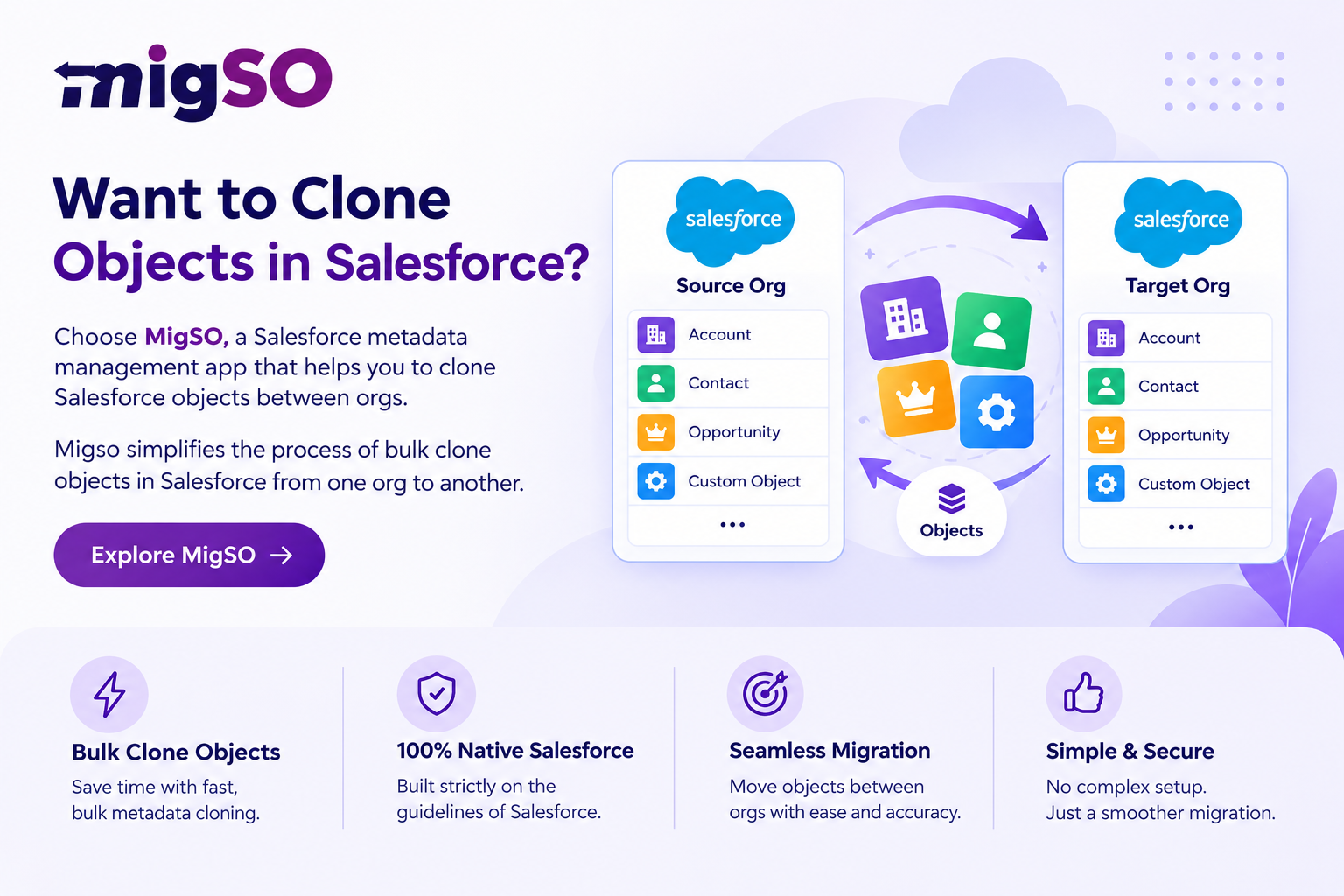
  • Simplify Salesforce object migration with MigSO, a Salesforce metadata management app that lets you bulk clone Salesforce objects between orgs quickly and efficiently.
    URL: https://migso.io/salesforce-clone-metadata/clone-salesforce-objects/
    Simplify Salesforce object migration with MigSO, a Salesforce metadata management app that lets you bulk clone Salesforce objects between orgs quickly and efficiently. URL: https://migso.io/salesforce-clone-metadata/clone-salesforce-objects/
    0 Commenti 0 condivisioni 1151 Views 0 Anteprima
  • Guide to Clone Salesforce Reports using migSO
    Salesforce reports are data listings created using specific criteria and filter settings within your CRM. Creating reports manually from scratch for every org is time-consuming and error-prone. This causes significant issues for Salesforce admins and developers, especially when managing multiple orgs with numerous reports.

    Why Clone Salesforce Reports Between Your Orgs?
    Cloning Salesforce Reports enables your team to avoid recreating reports from scratch for each org and helps maintain consistency. Clone Salesforce Reports between orgs also helps your team save time and effort, ensuring maximum productivity.

    Step-by-Step Guide to Clone Salesforce Reports using migSO
    Step 1. Open migSO via App Launcher
    Step 2. Select Clone Wizard
    Step 3. Select Clone Reports
    Step 4. Connect Source Org
    Step 5. Choose the folder
    Step 6. Choose Reports & Deploy
    Step 7. Review Deployment Status
    Step 8. Download Report

    Read More: https://migso.io/our-blog/guide/guide-to-clone-salesforce-reports-using-migso/
    Guide to Clone Salesforce Reports using migSO Salesforce reports are data listings created using specific criteria and filter settings within your CRM. Creating reports manually from scratch for every org is time-consuming and error-prone. This causes significant issues for Salesforce admins and developers, especially when managing multiple orgs with numerous reports. Why Clone Salesforce Reports Between Your Orgs? Cloning Salesforce Reports enables your team to avoid recreating reports from scratch for each org and helps maintain consistency. Clone Salesforce Reports between orgs also helps your team save time and effort, ensuring maximum productivity. Step-by-Step Guide to Clone Salesforce Reports using migSO Step 1. Open migSO via App Launcher Step 2. Select Clone Wizard Step 3. Select Clone Reports Step 4. Connect Source Org Step 5. Choose the folder Step 6. Choose Reports & Deploy Step 7. Review Deployment Status Step 8. Download Report Read More: https://migso.io/our-blog/guide/guide-to-clone-salesforce-reports-using-migso/
    MIGSO.IO
    Clone Salesforce Reports Easily Using migSO Tool
    Learn how to clone Salesforce Reports between orgs using migSO. Save time, reduce manual effort, and ensure consistent report deployment in minutes.
    0 Commenti 0 condivisioni 2107 Views 0 Anteprima
  • Clone Salesforce Objects
    Cloning objects from one org to another is tedious for admins, especially when you follow the old-school way of doing it manually. migSO, being a true native Salesforce app, helps you overcome this problem by simplifying the process of clone objects in salesforce from one org to another.

    How to Clone Objects in Salesforce By using migSO?
    Using the migSO, Clone Objects in Salesforce becomes a piece of cake. Simply follow the steps below and you'll be ready to work with your data.

    Step 01 : Open migSO via App Launcher
    Step 02 : Select Clone Wizard
    Step 03 : Select Metadata Item
    Step 04 : Select Source Org
    Step 05 : Choose Objects & Deploy
    Step 06 : Review Deployment Status
    Step 07 : Set Fields Permission
    Step 08 : Download Report

    Read More: https://migso.io/salesforce-clone-metadata/clone-salesforce-objects/
    Clone Salesforce Objects Cloning objects from one org to another is tedious for admins, especially when you follow the old-school way of doing it manually. migSO, being a true native Salesforce app, helps you overcome this problem by simplifying the process of clone objects in salesforce from one org to another. How to Clone Objects in Salesforce By using migSO? Using the migSO, Clone Objects in Salesforce becomes a piece of cake. Simply follow the steps below and you'll be ready to work with your data. Step 01 : Open migSO via App Launcher Step 02 : Select Clone Wizard Step 03 : Select Metadata Item Step 04 : Select Source Org Step 05 : Choose Objects & Deploy Step 06 : Review Deployment Status Step 07 : Set Fields Permission Step 08 : Download Report Read More: https://migso.io/salesforce-clone-metadata/clone-salesforce-objects/
    Clone Objects in salesforce, Bulk Clone Salesforce Objects - migSO
    Easily Clone Salesforce Objects by using our migSO App. migSO is a native Salesforce app that lets you clone objects in salesforce in one go.
    0 Commenti 0 condivisioni 2218 Views 0 Anteprima
  • Salesforce metadata is the heart of your Salesforce org that determines and specifies how your org acts. It defines your org’s structure, configuration, and functionalities. Metadata in Salesforce comprises all the elements that help admins configure and customize Salesforce orgs.

    Managing Salesforce metadata is crucial for admins as it empowers them to customize and optimize the Salesforce org as per their business needs. However, finding the right metadata item at the right time is not an easy chore. This is where migSO can help you!

    Locate your Metadata the Smart Way with migSO!
    migSO’s latest 1.89 version is loaded with a powerful ‘Metadata Search’ functionality. This new feature enables Salesforce admins to quickly search across the org’s metadata components to locate specific Apex classes, Apex triggers, fields, objects, permission sets, or installed packages within seconds. Metadata Search functionality also facilitates effective audit and debugging.

    Detailed Steps to Search Salesforce Metadata Using migSO
    Step 1. Open migSO via App Launcher
    Click “App Launcher” and search & select migSO.

    Step 2. Select Metadata Search Wizard
    Step 3. Enter the Metadata API Name
    Step 4. Filter the Search Results based on Metadata Types
    Step 5. Download the Search Results
    Metadata Search Made Easy with migSO!
    Searching for Salesforce metadata manually is both tedious and complex for Salesforce users. migSO’s latest 1.89 version features a new Metadata Search option that presents an effective way to locate metadata within your Salesforce org. migSO empowers admins to look for specific metadata and facilitates quick troubleshooting, deployment, or corrections.

    Who Are We?
    Tech9logy Creators is a Registered Salesforce Consulting and ISV Partner Company with over 11 years of experience. We have a certified team of developers with extensive knowledge about Salesforce AppExchange and provide you with the best-in-class personalized apps. Our dedicated Salesforce experts help you bring the best out of your CRM and ensure your business operates at its highest potential.

    Contact us for more information.

    Read More: https://migso.io/our-blog/guide/guide-to-search-salesforce-metadata-using-migso/
    Salesforce metadata is the heart of your Salesforce org that determines and specifies how your org acts. It defines your org’s structure, configuration, and functionalities. Metadata in Salesforce comprises all the elements that help admins configure and customize Salesforce orgs. Managing Salesforce metadata is crucial for admins as it empowers them to customize and optimize the Salesforce org as per their business needs. However, finding the right metadata item at the right time is not an easy chore. This is where migSO can help you! Locate your Metadata the Smart Way with migSO! migSO’s latest 1.89 version is loaded with a powerful ‘Metadata Search’ functionality. This new feature enables Salesforce admins to quickly search across the org’s metadata components to locate specific Apex classes, Apex triggers, fields, objects, permission sets, or installed packages within seconds. Metadata Search functionality also facilitates effective audit and debugging. Detailed Steps to Search Salesforce Metadata Using migSO Step 1. Open migSO via App Launcher Click “App Launcher” and search & select migSO. Step 2. Select Metadata Search Wizard Step 3. Enter the Metadata API Name Step 4. Filter the Search Results based on Metadata Types Step 5. Download the Search Results Metadata Search Made Easy with migSO! Searching for Salesforce metadata manually is both tedious and complex for Salesforce users. migSO’s latest 1.89 version features a new Metadata Search option that presents an effective way to locate metadata within your Salesforce org. migSO empowers admins to look for specific metadata and facilitates quick troubleshooting, deployment, or corrections. Who Are We? Tech9logy Creators is a Registered Salesforce Consulting and ISV Partner Company with over 11 years of experience. We have a certified team of developers with extensive knowledge about Salesforce AppExchange and provide you with the best-in-class personalized apps. Our dedicated Salesforce experts help you bring the best out of your CRM and ensure your business operates at its highest potential. Contact us for more information. Read More: https://migso.io/our-blog/guide/guide-to-search-salesforce-metadata-using-migso/
    MIGSO.IO
    Guide to Search Salesforce Metadata Using migSO
    migSO has recently launched a new "Metadata Search" feature. Go through this comprehensive guide to unlock the steps involved in locating metadata in your org.
    0 Commenti 0 condivisioni 2173 Views 0 Anteprima
  • Guide to Clone Salesforce Reports using migSO
    Salesforce reports are data listings created using specific criteria and filter settings within your CRM. Creating reports manually from scratch for every org is time-consuming and error-prone. This causes significant issues for Salesforce admins and developers, especially when managing multiple orgs with numerous reports.

    Why Clone Salesforce Reports Between Your Orgs?
    Cloning Salesforce Reports enables your team to avoid recreating reports from scratch for each org and helps maintain consistency. Cloning Salesforce Reports between orgs also helps your team save time and effort, ensuring maximum productivity.

    Step-by-Step Guide to Clone Salesforce Reports using migSO
    Step 1. Open migSO via App Launcher
    Step 2. Select Clone Wizard
    Step 3. Select Clone Reports
    Step 4. Connect Source Org
    Step 5. Choose the folder
    Step 6. Choose Reports & Deploy
    Step 7. Review Deployment Status
    Step 8. Download Report

    Click to know more:https://migso.io/our-blog/guide/guide-to-clone-salesforce-reports-using-migso/
    Guide to Clone Salesforce Reports using migSO Salesforce reports are data listings created using specific criteria and filter settings within your CRM. Creating reports manually from scratch for every org is time-consuming and error-prone. This causes significant issues for Salesforce admins and developers, especially when managing multiple orgs with numerous reports. Why Clone Salesforce Reports Between Your Orgs? Cloning Salesforce Reports enables your team to avoid recreating reports from scratch for each org and helps maintain consistency. Cloning Salesforce Reports between orgs also helps your team save time and effort, ensuring maximum productivity. Step-by-Step Guide to Clone Salesforce Reports using migSO Step 1. Open migSO via App Launcher Step 2. Select Clone Wizard Step 3. Select Clone Reports Step 4. Connect Source Org Step 5. Choose the folder Step 6. Choose Reports & Deploy Step 7. Review Deployment Status Step 8. Download Report Click to know more:https://migso.io/our-blog/guide/guide-to-clone-salesforce-reports-using-migso/
    MIGSO.IO
    Clone Salesforce Reports Easily Using migSO Tool
    Learn how to clone Salesforce Reports between orgs using migSO. Save time, reduce manual effort, and ensure consistent report deployment in minutes.
    0 Commenti 0 condivisioni 2139 Views 0 Anteprima
  • Guide to Export Salesforce Workflow Rules in Bulk using migSO
    Salesforce Workflow Rules helps automate business processes, streamline operations, and ensure consistency across your organization. Further, exporting Workflow rules also promotes workflow audits, migration to a new org, and backup management. However, manually exporting such metadata can be time-consuming and error-prone, especially for large organizations with numerous rules.

    Get ready to modernize your metadata operations using migSO, a powerful Salesforce app that empowers you to seamlessly export Workflow rules while saving your precious time and ensuring precision. Explore this guide to understand the importance of exporting Workflow Rules and how migSO simplifies this complex process.

    Why Export Workflow Rules in Salesforce?
    Workflow Rules refer to automated actions triggered by specific conditions, such as field updates, task assignments, and email alerts. Bulk Exporting Salesforce Workflow Rules encourages regular review, migration, and backup, and helps you ensure alignment, recovery readiness, and enhanced efficiency. Let’s go through the detailed steps for exporting Workflow Rules in bulk using migSO.

    Step-by-Step Guide to Export Workflow Rules in Bulk Using migSO
    Now, let’s get into the detailed process of exporting Workflow Rules using migSO:

    Step 1. Open migSO via App Launcher
    Click “App Launcher” and Search & Select migSO.

    Step 2. Select the Export Wizard tab
    Step 3. Select the Metadata item – Workflow Rules
    Step 4. Choose the Relevant Object
    Step 5. Download the Export Report
    Conclusion
    Exporting Salesforce Workflow Rules in bulk is an essential task for admins managing complex processes as it empowers them to ensure alignment, recovery readiness, and enhanced efficiency. migSO simplifies this task, enhances accuracy, and saves you valuable time. Overall, migSO enables you to single-handedly migrate, export, and manage metadata items.

    Who are We?
    Tech9logy Creators is a Registered Salesforce Consulting and ISV Partner Company with over 10 years of experience. We have a certified team of developers with extensive knowledge about Salesforce AppExchange and provide you with the best-in-class personalized apps. Our dedicated Salesforce experts help you bring the best out of your CRM and ensure your business operates at its highest potential.

    Read More: https://migso.io/our-blog/guide/guide-to-export-salesforce-workflow-rules-in-bulk-using-migso/
    Guide to Export Salesforce Workflow Rules in Bulk using migSO Salesforce Workflow Rules helps automate business processes, streamline operations, and ensure consistency across your organization. Further, exporting Workflow rules also promotes workflow audits, migration to a new org, and backup management. However, manually exporting such metadata can be time-consuming and error-prone, especially for large organizations with numerous rules. Get ready to modernize your metadata operations using migSO, a powerful Salesforce app that empowers you to seamlessly export Workflow rules while saving your precious time and ensuring precision. Explore this guide to understand the importance of exporting Workflow Rules and how migSO simplifies this complex process. Why Export Workflow Rules in Salesforce? Workflow Rules refer to automated actions triggered by specific conditions, such as field updates, task assignments, and email alerts. Bulk Exporting Salesforce Workflow Rules encourages regular review, migration, and backup, and helps you ensure alignment, recovery readiness, and enhanced efficiency. Let’s go through the detailed steps for exporting Workflow Rules in bulk using migSO. Step-by-Step Guide to Export Workflow Rules in Bulk Using migSO Now, let’s get into the detailed process of exporting Workflow Rules using migSO: Step 1. Open migSO via App Launcher Click “App Launcher” and Search & Select migSO. Step 2. Select the Export Wizard tab Step 3. Select the Metadata item – Workflow Rules Step 4. Choose the Relevant Object Step 5. Download the Export Report Conclusion Exporting Salesforce Workflow Rules in bulk is an essential task for admins managing complex processes as it empowers them to ensure alignment, recovery readiness, and enhanced efficiency. migSO simplifies this task, enhances accuracy, and saves you valuable time. Overall, migSO enables you to single-handedly migrate, export, and manage metadata items. Who are We? Tech9logy Creators is a Registered Salesforce Consulting and ISV Partner Company with over 10 years of experience. We have a certified team of developers with extensive knowledge about Salesforce AppExchange and provide you with the best-in-class personalized apps. Our dedicated Salesforce experts help you bring the best out of your CRM and ensure your business operates at its highest potential. Read More: https://migso.io/our-blog/guide/guide-to-export-salesforce-workflow-rules-in-bulk-using-migso/
    MIGSO.IO
    Guide to Export Salesforce Workflow Rules in Bulk using migSO
    Looking to export Salesforce workflow rules in Salesforce? Here migSO brings you to a solution to easily export mass Salesforce Workflow Rules with 24*7 support.
    0 Commenti 0 condivisioni 2182 Views 0 Anteprima